Phase 3 of 3 · Apply
Apply: the system works, you decide.
You have chosen, you have sized. Here the systems go to work: from the moment you turn one on, we check its entry conditions every market day, and when they appear we let you know wherever you prefer. Think of a system that wins 98% of the time but is so rare that nobody could wait for it in front of a screen: we close that gap.
Applied does not mean active
From the result page, Apply brings the sized system into your systems. Turning it on is a second step, on purpose: between the two is the moment you decide. Once it is active, the system writes to you when the time comes; you place the trade yourself, with your broker. MetricAlgo never places orders.
01 My Systems
My Systems: the page you will open most often.
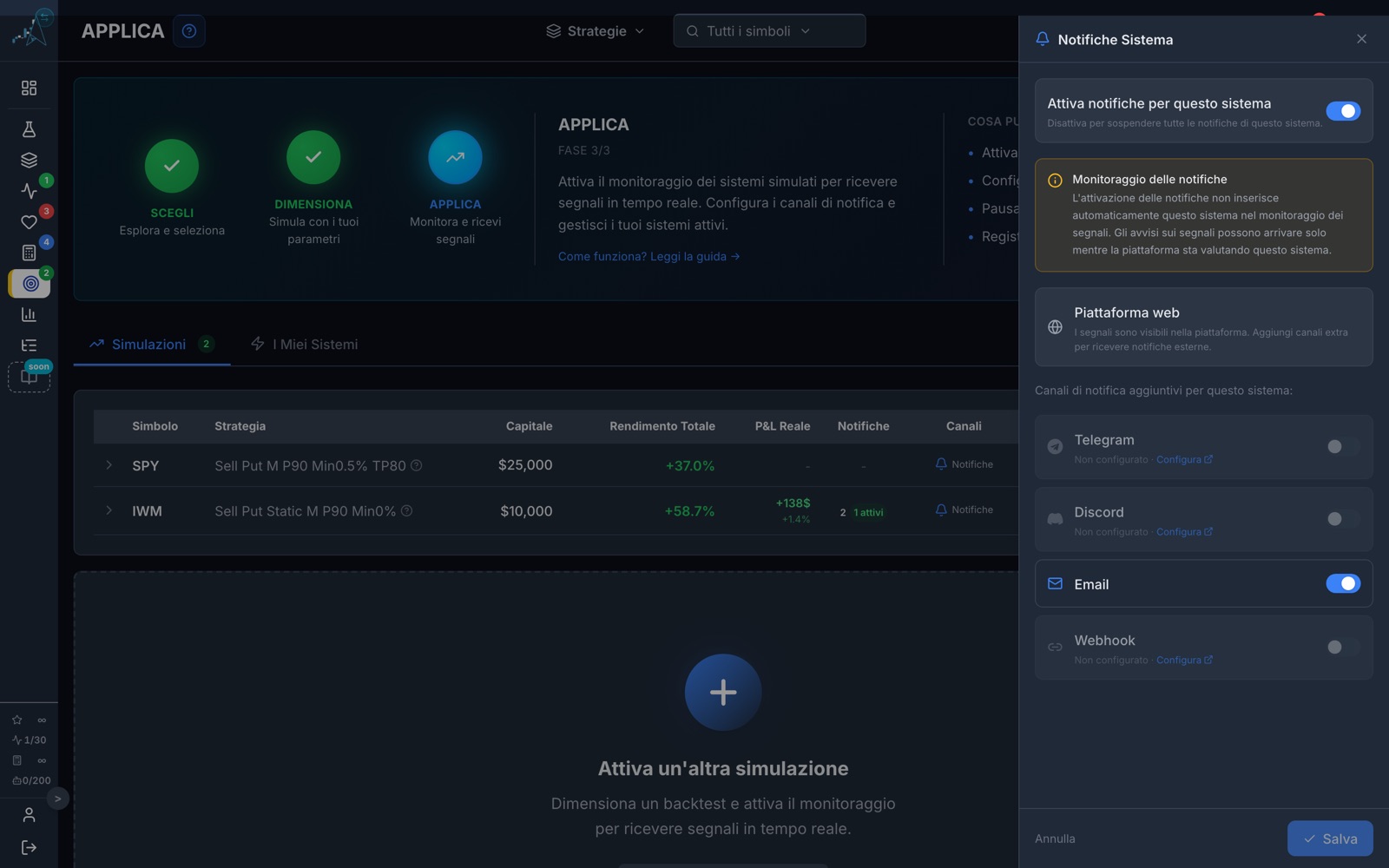
Here you find every system you have applied, with the capital you sized it with, the return of the simulation, its status and its notification channels. You turn it on, pause it, resume it or archive it with one click.
- Active: the entry conditions are being watched and notifications go out
- Paused: it does not write to you, but keeps its whole setup; useful for holidays or moments of doubt
- Archived: it stops working for good, but its history can still be consulted
- Real P&L: not an estimate, but the result of the notifications already closed
Ten switched on, two that write to you
The notification switch is per system: you can keep several active and be notified only by the ones you want to follow closely.
1 active system with the Free plan, 7 with Starter, 30 with Pro. The System of the Month does not take up a slot.

02 Notification channels
Notifications: wherever you want, system by system.
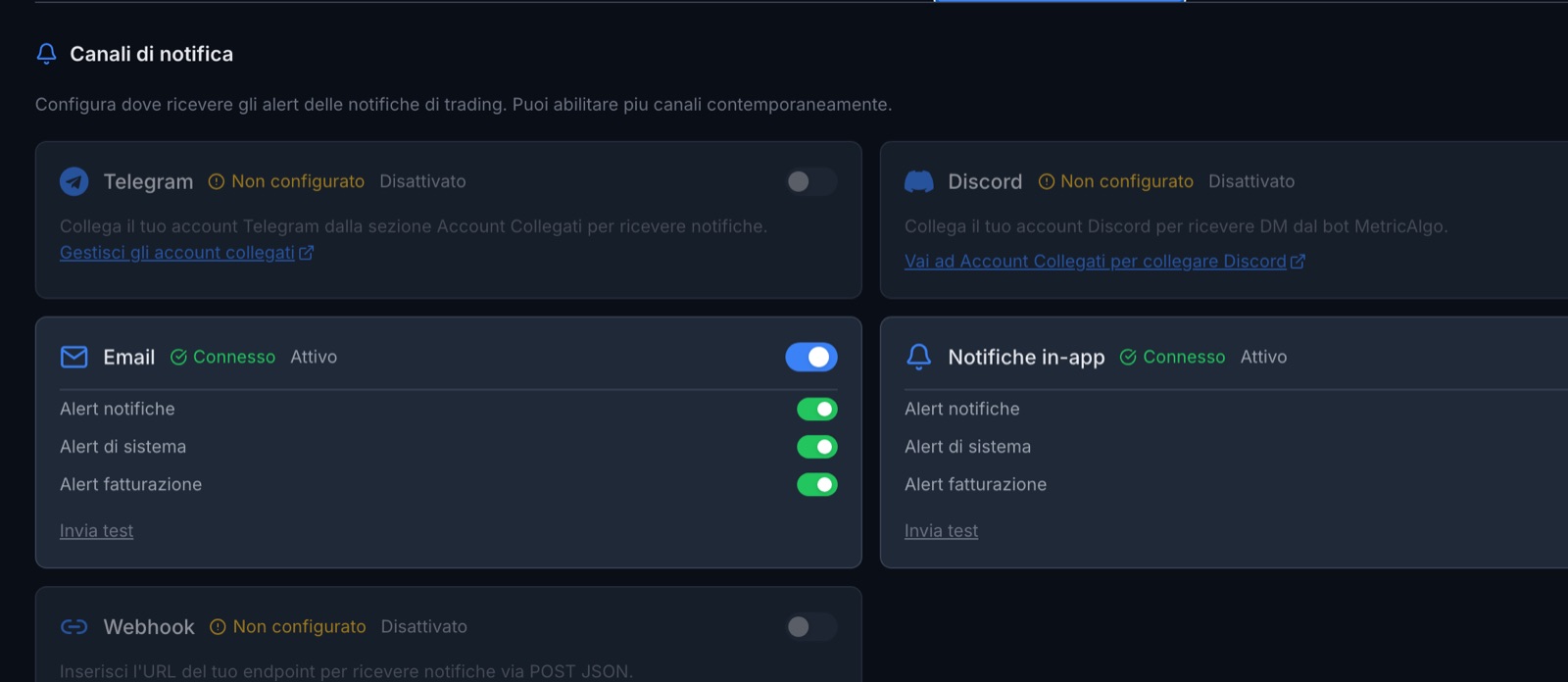
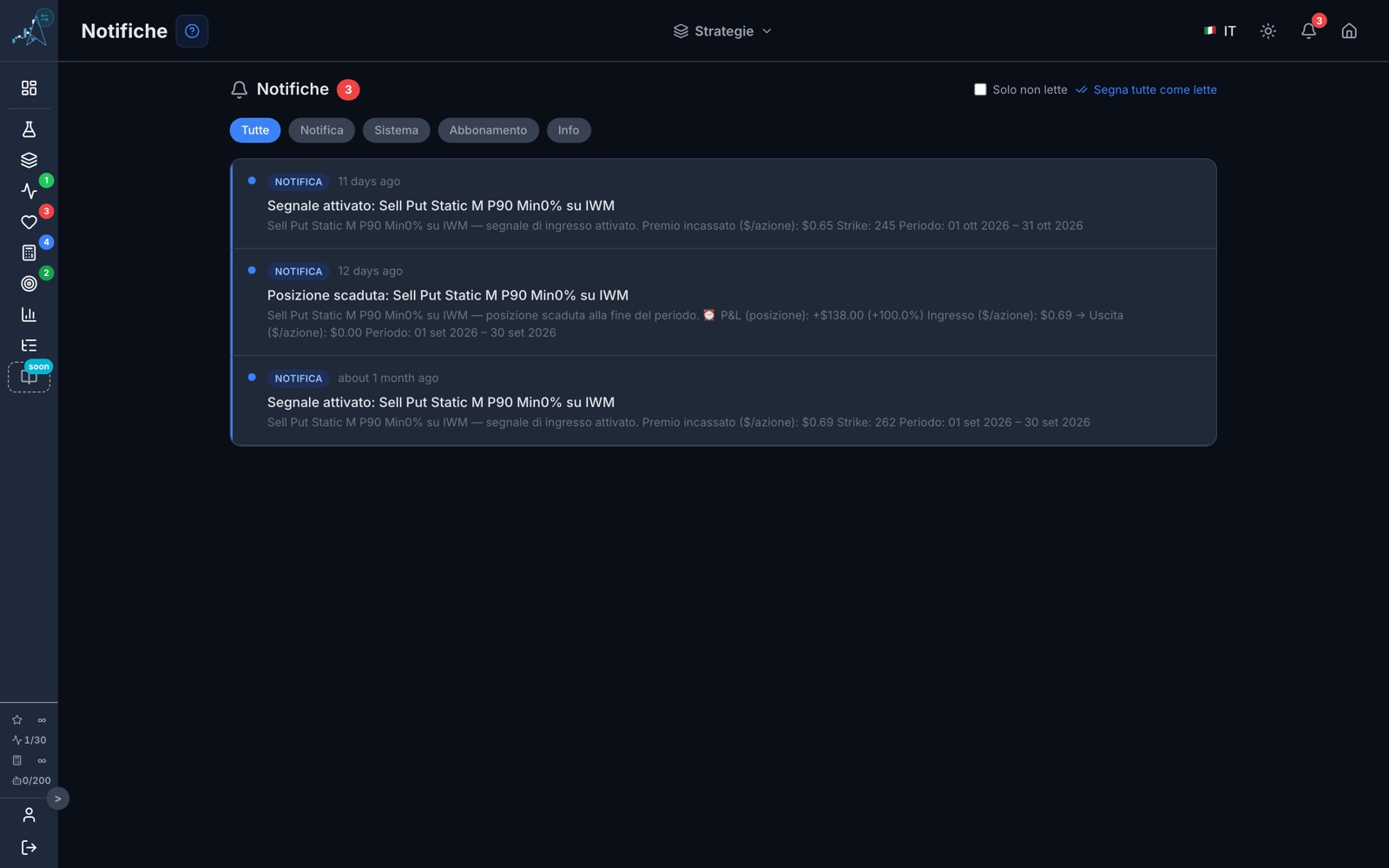
The web platform is always on: every notification appears under the bell. On top of that you can switch on Telegram, Discord, email and webhook, and choose them system by system: Telegram for one, email for another. You connect your contact details just once, from your profile.
- Telegram: instant on your phone, connected with one click
- Discord: for those who already live in their community
- Email: no setup, works everywhere
- Webhook: to connect the notifications to your own tools
Email, Telegram and Discord in every plan; webhook with the Pro plan.
03 Active Systems
Active Systems: what is happening right now.
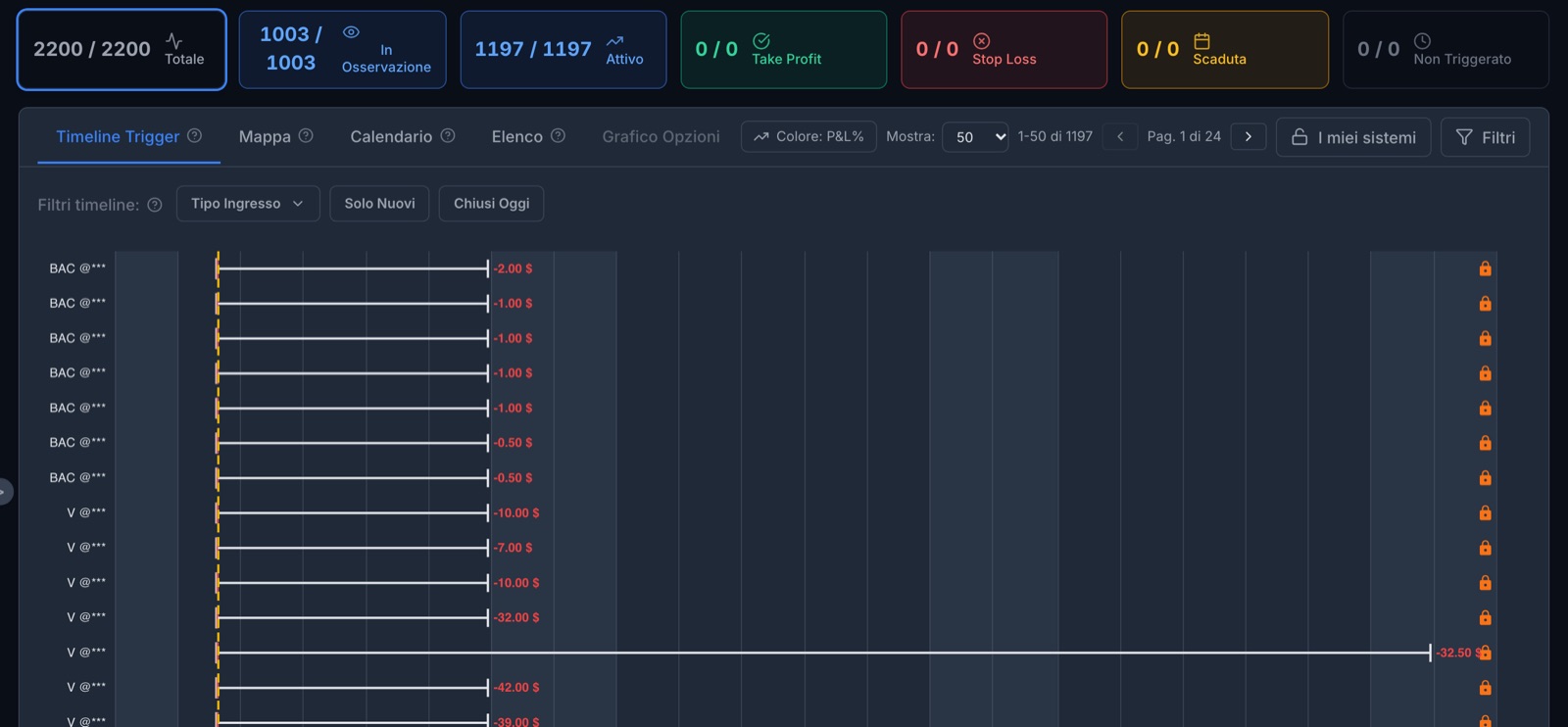
The other pages talk about history, this one talks about the present. At the top, the numbers of the moment: how many systems are being watched, how many have entered, how many have closed and how. Below, the timeline of every notification, updated as the market moves.
- All the systems on the platform or only yours: the difference between studying the market and keeping an eye on your positions
- Timeline, Map, Calendar and List: four ways to follow them
- It is also a way to choose: you can discover systems that are working well right now, even if you do not follow them
The list in every plan; timeline, calendar and map from Starter.
On the dashboard
04 The notification
When the notification arrives, you decide.
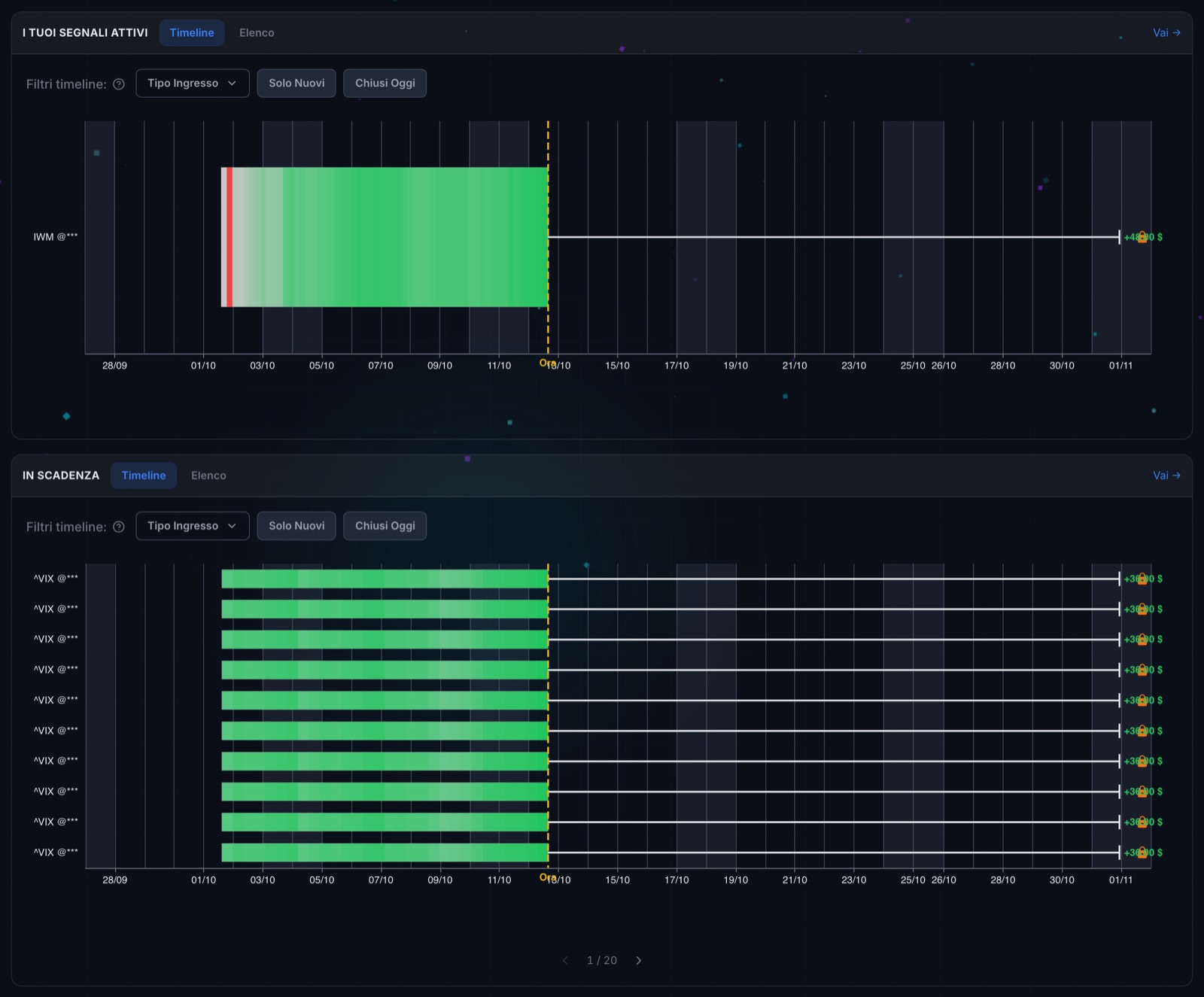
A notification tells you that the entry conditions of a system have appeared. From there you have two roads: watch how it goes without trading, which is a great way to get to know a system before putting money into it, or open your broker and place the trade. Either way you follow it on its own page, with the result updated until it closes.
- You receive the notification on the channel you chose
- You open your broker, the one you already use: any broker that offers US options will do
- You enter the order and check the real price before confirming
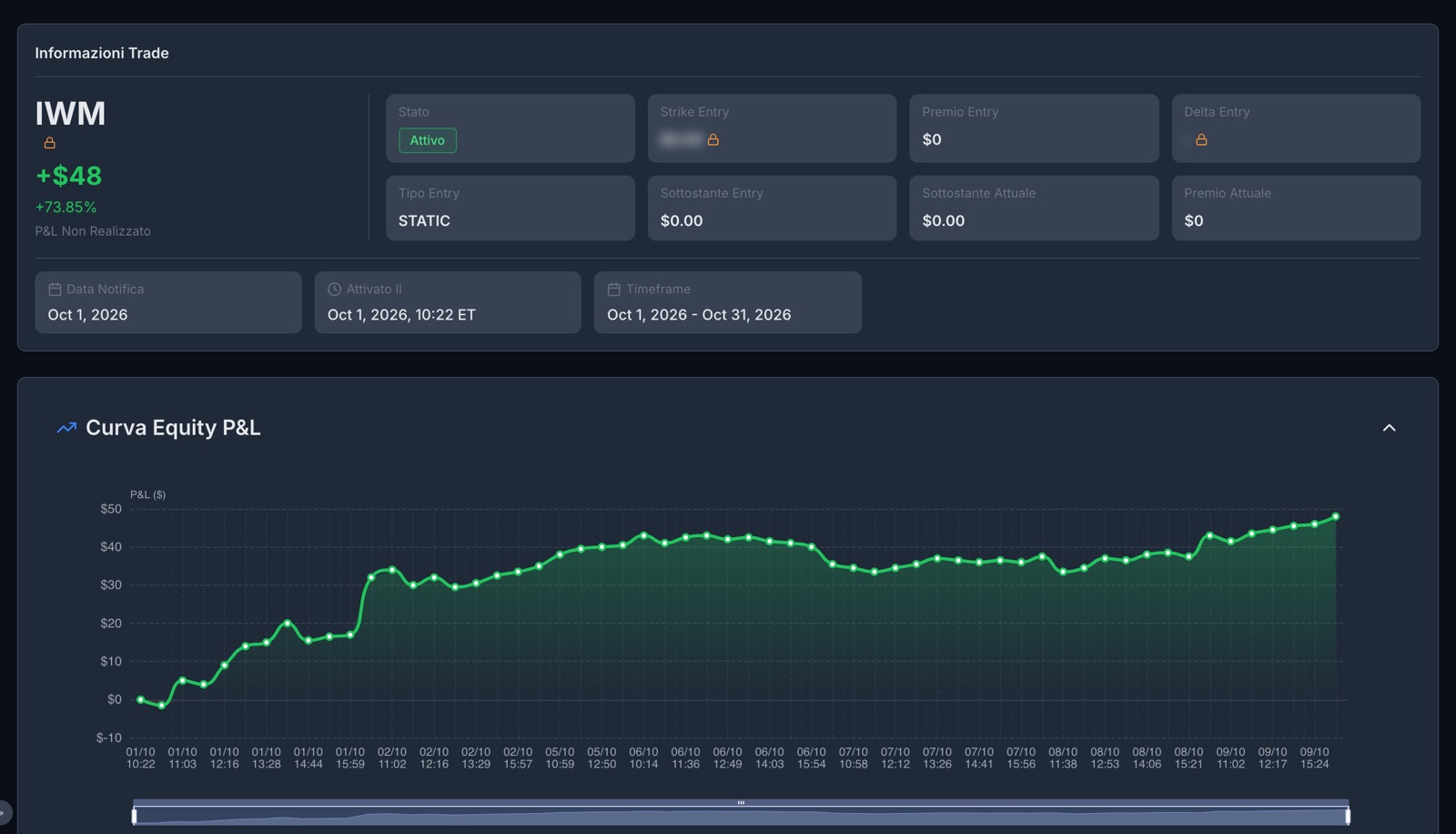
- You follow the trade on the platform until it closes
Even if you do not trade, you learn
Every notification that fires shows its result in real time: you see exactly how much you would have gained or lost by following it, even if you did nothing.
In every plan, for the systems you have turned on.
The bell
The mistake to avoid: treating the notification as an order.
The notification reports the conditions at the moment it fired. The price you will get depends on your broker, on when you enter the order and on the market: always check the bid and the ask before confirming. On liquid options the gap is usually small, but it is your decision, and it should be made with the numbers in front of you.
Want to see it all in order?
We took a real system and walked it through all seven steps, from the library to the notification, with a screenshot for each one.